
Kisei —
the setup bot
You need it once: this is where you create your own personal AI assistant, Ki. After that Kisei steps aside — only your Ki works in your chats
Understands. Remembers.
Gets things done.
It takes the busywork — the decisions stay yours. Write or speak to it like you would to a real person: no servers, no setup, no learning curve.
Reminds you about the meeting → attaches the materials → captures what was agreed: it sees things through.
Bringing AI into your life is easier than it looks: an assistant right inside your Telegram
Open Kisei in Telegram
Kisei is the sun. Ki is your ray of light,
always by your side
You need it once: this is where you create your own personal AI assistant, Ki. After that Kisei steps aside — only your Ki works in your chats
This is the one you add to work and personal chats: it remembers agreements and the context of your chats, writes recaps, reminds you about what matters — and transcribes voice messages
Sound familiar?
Decisions drown in voice notes and message threads. Ki transcribes them, writes them down and reminds you at the right moment
Ki works right inside Telegram: no servers, no complex setup — just add it and start writing
Ki finds contracts, emails and files in seconds — and answers straight to the point
Meetings, important emails and task status — on your schedule.
Ki reminds you on time and attaches the materials for the meeting.
Transcribed, agreements captured — nobody has to listen to it again
Just ask “where's the contract?” — Ki finds it in seconds and replies with a link.
“Find everything for a trip to Japan” — Ki researches the options and puts together a travel plan.
Remembers facts, decisions and context — you never have to explain everything from scratch
Calendar, events and planning: “prepare the materials and send them tomorrow” — ready right when you need it
Captures decisions from chats and voice messages, writes recaps and summaries — nothing gets lost
Email and chats: surfaces what matters, helps you reply faster, filters out the noise. Any mailbox — not just Gmail
Builds a study plan and runs the sessions at the scheduled time, analyses your team's reports and boils them down, creates a Notion page for your project work
Across files, email and the web: “where's the contract?”, “pick a robot vacuum under $300” — it finds, compares and replies with a link
Talk to Ki like any AI you already use: ask questions, describe tasks and get finished answers
Ki surfaces what matters in your email, filters out the noise and helps you reply faster
Ki reminds you in advance and suggests a gift idea — all that's left is to choose
“Promised to call back, to pay, to pick up” — Ki notes it down and reminds you on time
Voice messages transcribed, agreements captured — Ki reminds you about them on time
A morning briefing by 7:00: meetings, important emails and task status — 15–20 minutes saved every morning
“Where's the contract with Ivanov?” — Ki finds it in seconds and points to the exact clause
Start with whatever feels comfortable — and go further when you're ready.
Every step is your own choice.
Ki transcribes voice messages in your one-on-one Telegram chats — you read instead of listening.
How to turn it on: enable Chat Automation in the settings. This mode works in private chats only.
Add your Ki to a work or family chat like any other member: it answers questions, helps the people there and turns voice messages into text.
How to turn it on: just add your bot to the group — there is nothing else to switch on.
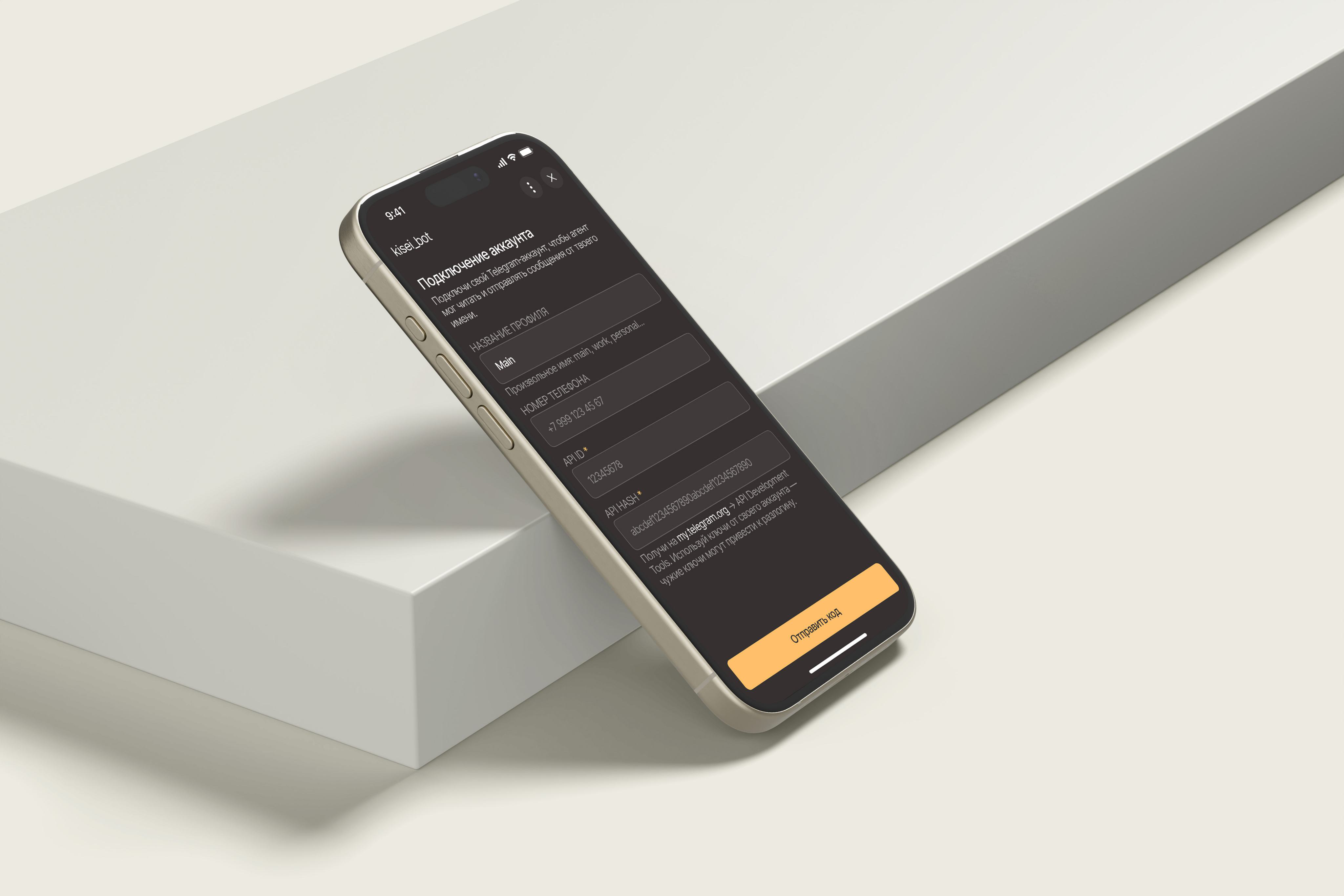
Ki connects to your Telegram account and works on your behalf — it can reply and write for you.
How to turn it on: connect by scanning a QR code. You stay in control and can disconnect at any moment.
Open Kisei in Telegram — it will help you create your personal assistant
By text or voice, like to a real person: “Prepare a summary for the meeting with the contractor”, “Remind me to pay the insurance on the 30th”, “What's on today?”
Email, calendar, files. You decide what to give access to
Ki remembers facts about you and your work — and helps whenever you ask, at the right moment
To work and personal chats — to help out and get things done
Ordinary AI chats don't know your context — Ki lives in Telegram, where your conversations, files and work already are
Tracks deadlines, remembers tasks, agreements and the context of the chats you add it to — private and group
Reminds you about a meeting, attaches the materials, captures the agreements — at your request and with your permission
Ki remembers everything you've told it. Someone else has
their own Ki with its own memory: your data never mixes.
Come back in a week or a month —
Ki picks up right where you left off.
No “tell me about yourself again”.
Ki's notes about you, your email and files
are not available to other users —
even if you are in the same chat.
Every channel is connected with your
separate permission — and access
can be revoked at any moment.
Add your bot to a chat — it follows the discussion
(with permission), remembers what matters and helps when asked. It transcribes voice
messages and captures agreements.
Every voice message in the chat comes with a transcript — nobody listens twice
It replies the way you set it up: only to you, to everyone, or on request
Several people can add their own assistants to the same chat
A shared chat stays shared, and personal context stays personal
Kisei creates your assistant — you need it once. Ki works with you every day: in your chats, email and calendar.
No. Telegram is all you need: create your Ki through Kisei and write to it — no servers, no special knowledge.
Any — not just Gmail. Calendar and files connect the same way: you grant the access yourself, with a separate permission.
Your data is stored in isolation and is not accessible to other users — even if you are in the same chat.
Yes. Add it to work and personal chats — capturing agreements, discussion recaps, voice transcription.
Access is free until November 1. Pricing will appear on the site later — stay tuned.
Let Ki search, remind, gather and follow through —
while you focus on what truly needs your attention.
With colleagues, Ki helps you keep track of agreements and tasks; with friends and family, it helps you gather plans, dates and lists for trips, get-togethers and celebrations.
Write to your Ki: “Send me my referral link”.
Send it to a friend, someone close to you or a colleague.
When they join Kisei, you'll get a notification.